
September 8, 2026
What Is a Technical SEO Audit and How Do You Run One?
You can write the best page on the internet, and it won’t matter if Google can’t find it, can’t load it properly, or has been told by your own website to stay away.
That last one happens more often than you’d think. A box ticked during a website redesign, a plugin setting nobody remembers changing, a page that quietly broke when the site moved to a new host. None of these show up when you look at your website in a browser. They only show up when someone checks.
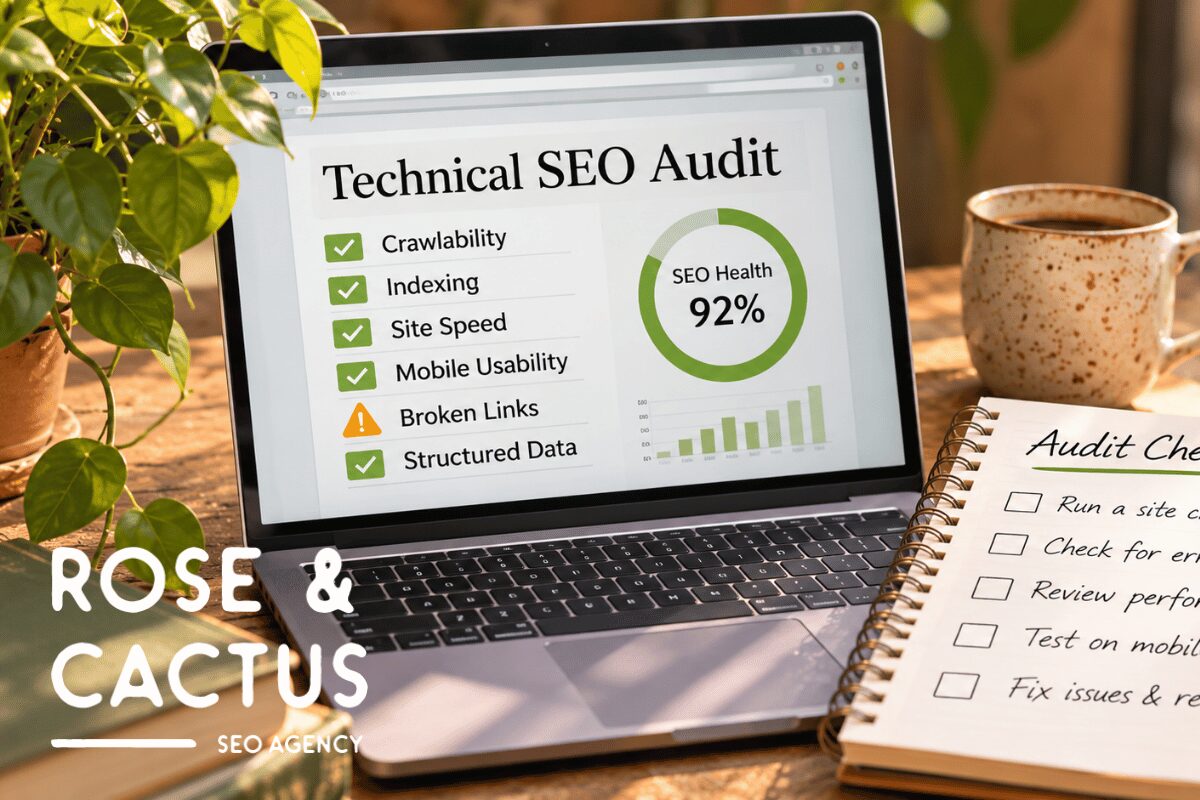
A technical SEO audit is that check. This guide explains what it covers, why each part matters, and how to run a basic one yourself with free tools.
What is an SEO audit?
An SEO audit is a review of your website to find what’s helping or holding back your visibility in search. Most full audits look at three areas:
- Technical SEO: whether search engines can crawl, load, and understand your site.
- On-page and content: whether your pages target the right searches and answer them well.
- Off-page: your site’s reputation elsewhere on the web, like links, mentions, and reviews.
We’ve covered how to do a full SEO audit and running an SEO content audit separately. This post focuses on the technical side, because it’s the foundation the other two sit on. If search engines can’t access a page properly, the quality of its content doesn’t get a chance to count.
What is a technical SEO audit?
A technical SEO audit checks the parts of your website that visitors don’t see but search engines rely on. It answers a few basic questions:
- Can search engines find all the pages you want them to find?
- Are they allowed to crawl and index those pages?
- Do pages load quickly and work properly on phones?
- Is there anything confusing search engines, like duplicate versions of pages or broken links?
- In 2026: can AI search tools access your content, if you want them to?
Think of it as a building inspection. Nobody’s assessing the decor. They’re checking that the doors open, the wiring works, and the foundation is sound.
Do you need a paid tool for a technical SEO audit?
Not for a small site. Paid crawlers like Semrush, Ahrefs, and Screaming Frog’s paid version are faster and more thorough, and they’re worth it for large sites or regular agency work. But most of what a small business needs is available free:
- Google Search Console shows which pages Google has indexed, which it hasn’t, and why.
- PageSpeed Insights measures how fast your pages load and how they score on Core Web Vitals.
- Lighthouse, built into the Chrome browser, checks performance, mobile usability, and basic SEO on any page.
- Google’s Rich Results Test checks your structured data.
- Screaming Frog’s free version crawls up to 500 URLs, which covers most small business websites.
How to conduct a technical SEO site audit
Work through these steps in order. The early ones catch the most serious problems.
1. Check what Google has actually indexed
Start in Google Search Console under Indexing > Pages. This report shows how many of your pages are indexed (eligible to appear in search) and how many aren’t, with the reason for each.
Some “not indexed” pages are fine, like redirected URLs or tag pages you don’t need in search. What you’re looking for is important pages in the wrong list: a service page marked “Excluded by ‘noindex’ tag,” or a batch of pages marked “Crawled, currently not indexed.”
A quick sense check helps too. Search site:yourdomain.com on Google. If you have 40 pages and Google shows 6, or 600, something needs investigating.
2. Review your robots.txt file
Your robots.txt file tells search engines which parts of your site they’re allowed to crawl. You can view it by typing yourdomain.com/robots.txt into your browser.
The classic disaster looks like this: <pre style=”background:#f4f4f4;border:1px solid #ddd;border-radius:6px;padding:16px;font-family:monospace;font-size:0.9rem;line-height:1.6;overflow-x:auto;”> User-agent: * Disallow: / </pre>
That tells every search engine to stay away from your entire site. It’s often added while a new website is being built and then forgotten at launch. If you’re on WordPress, also check Settings > Reading and make sure “Discourage search engines from indexing this site” is unticked.
3. Check AI crawler access
This step is new, and most technical SEO guides haven’t caught up with it yet.
AI tools use their own crawlers, and your robots.txt can allow or block each one separately. The important thing to know is that different crawlers do different jobs:
- GPTBot is OpenAI’s crawler for training its AI models. According to OpenAI’s documentation, OAI-SearchBot is the one that surfaces sites in ChatGPT search, and blocking it means your site “will not be shown in ChatGPT search answers.”
- Google-Extended controls whether your content can be used to train Google’s Gemini models. Google says it “does not impact a site’s inclusion in Google Search nor is it used as a ranking signal”. Your appearance in Google’s AI Overviews is governed by regular Googlebot.
Whether you allow AI training is a business decision. Plenty of businesses are comfortable opting out. What you want to avoid is blocking AI search by accident, because then you disappear from answers your customers are reading. Some hosting and security services, including Cloudflare, have settings that block AI crawlers, so check those too if your robots.txt looks fine but you suspect something’s being blocked. For the bigger picture, see our guide to generative engine optimization.
4. Check your XML sitemap
An XML sitemap is a list of the pages you want search engines to know about. Most website platforms create one automatically, usually at yourdomain.com/sitemap.xml or yourdomain.com/sitemap_index.xml.
In Search Console, go to Indexing > Sitemaps and confirm it’s been submitted and read successfully. Then open the sitemap itself and scan it. It should include your important pages and leave out things like thank-you pages, test pages, and redirected URLs.
5. Crawl the site for broken links and redirects
Run your site through Screaming Frog (or a paid tool) to see every page and link the way a search engine does. Look for:
- Broken links (404 errors): links pointing to pages that no longer exist. They frustrate visitors and waste the authority those links would otherwise pass.
- Redirect chains: page A redirects to B, which redirects to C. Each hop slows things down. Point links straight to the final page.
- Missing redirects: old URLs from a previous version of your site that now lead nowhere. After a redesign, these are often the biggest single cause of lost rankings. Our guide to 301 redirects explains how to set them up.
- Orphan pages: pages nothing on your site links to. Search engines struggle to find them, and visitors never will. Internal linking fixes this.
6. Look for duplicate versions of pages
Your website should exist at exactly one address. Type each of these into your browser and check they all end up at the same version:
http://yourdomain.comhttps://yourdomain.comhttp://www.yourdomain.comhttps://www.yourdomain.com
If two or more load separately instead of redirecting, search engines may see duplicate copies of your whole site. The same applies inside the site. Product pages with filter options, tracking codes in URLs, and printer-friendly versions can all create near-identical pages. Canonical tags tell search engines which version is the original. Our post on duplicate content covers this in more detail.
7. Test page speed and Core Web Vitals
Core Web Vitals are Google’s measurements of how a page feels to use. According to web.dev, a page passes when, for 75% of visits:
- Largest Contentful Paint (LCP), how long the main content takes to appear, is 2.5 seconds or less
- Interaction to Next Paint (INP), how quickly the page responds when someone taps or clicks, is 200 milliseconds or less
- Cumulative Layout Shift (CLS), how much the page jumps around while loading, is 0.1 or less
Check the Core Web Vitals report in Search Console for an overview, then run your most important pages through PageSpeed Insights. On small business sites, the usual culprits are oversized images, too many plugins, and heavy page builders. Our guides to page speed and image optimization cover the fixes.
8. Check how the site works on a phone
Google indexes the mobile version of your site, so that’s the version that counts. Google retired its Mobile-Friendly Test in December 2023, so some older audit guides are pointing you to a tool that no longer exists. Use Lighthouse in Chrome instead.
The best test is still the simplest: open your site on your own phone. Can you read the text without zooming? Can you tap buttons without hitting the wrong one? Does the menu work? Does anything get cut off?
9. Test your structured data
Structured data, or schema markup, is code that tells search engines exactly what’s on a page: your business details, opening hours, reviews, FAQs, products. Run key pages through Google’s Rich Results Test to check it’s valid. Errors here won’t usually stop a page ranking, but they can stop Google from understanding your business details properly.
10. Confirm HTTPS and security
Every page should load over HTTPS, with the padlock showing in the browser. Check for “mixed content” warnings, where a secure page loads images or scripts over insecure HTTP. Search Console’s Security & Manual Actions section will also tell you if Google has spotted hacking or malware on your site.
Common technical SEO issues on small business websites
After auditing a lot of small business sites, the same technical SEO issues come up again and again:
- A noindex tag or “discourage search engines” setting left on after launch
- Old URLs with no redirects after a website redesign or platform move
- Images uploaded straight from a phone or camera at several megabytes each
- A staging or test version of the site that Google has indexed
- The http and https (or www and non-www) versions both loading
- Plugins that are no longer used but still slow every page down
- Service pages buried so deep in the menu that nothing links to them
- AI search crawlers blocked by a security setting nobody knew existed
Most of these take minutes to fix once you know they’re there.
Technical SEO audit checklist
Use this technical SEO audit checklist as a quick reference:
- Search Console Pages report reviewed, and important pages indexed
site:search count roughly matches your page count- robots.txt isn’t blocking important pages
- WordPress “discourage search engines” setting is off
- AI search crawlers (like OAI-SearchBot) allowed, if you want to appear in AI answers
- XML sitemap submitted and read successfully in Search Console
- No broken internal links
- No redirect chains
- Old URLs redirected to their new equivalents
- No orphan pages
- One version of the site (https, www or non-www) with others redirecting
- Canonical tags in place for near-duplicate pages
- Core Web Vitals passing on key pages
- Images compressed and appropriately sized
- Site tested on a real phone
- Structured data valid in the Rich Results Test
- Every page on HTTPS, no mixed content warnings
- No security issues or manual actions in Search Console
What a technical SEO audit report should look like
If you’re paying someone to audit your site, the technical SEO audit report you get back should help you act on it. A 90-page export from a crawling tool doesn’t count.
A useful report:
- Ranks issues by impact. A noindex tag on your homepage and a missing image alt tag are not the same size of problem. The report should separate critical issues from nice-to-haves.
- Explains each issue in plain English. What’s wrong, why it matters, and what happens if you leave it.
- Says who needs to fix it. Some fixes are a settings change you can make yourself. Others need a developer or your hosting company.
- Gives a rough effort estimate. Ten minutes or two days changes how you prioritize.
Be wary of reports that lead with an overall “health score.” Tools generate those automatically, and a site scoring 74/100 can be in better shape than one scoring 91 if the problems are in the right places.
How often should you run a technical SEO audit?
For most small business websites, a full technical audit once or twice a year is enough. On top of that, run one:
- After a website redesign or move to a new platform
- After changing domain names or switching to HTTPS
- When traffic drops suddenly without an obvious reason
- After installing major new plugins or themes
Between audits, check Search Console every month or so. It will email you about many serious problems, but only if someone’s reading those emails.
If you’d rather have someone else look under the hood, get in touch and we’ll run a technical audit with a report you can actually act on.
 | Laura PullingLaura is a content strategist, SEO consultant, and lover of quiz nights. She works with global clients to turn great ideas into well-ranked, high-converting content.   |
FAQs: Technical SEO Audits
What is an SEO audit?
What should a technical SEO audit checklist include?
What are the most common technical SEO issues?
How do I conduct a technical SEO site audit for free?
Should I block AI crawlers in robots.txt?
What should a technical SEO audit report include?
Ready to See Real Results?
Let’s Get Started.
We’re not here to follow trends. We’re here to build strategies that bring bold results and lasting growth. Whether you need a complete overhaul or just a strategic boost, Rose & Cactus is ready to deliver.
let's work together


